

Find your products and put them to work
A practical guide to your Oscar account, database downloads, reports, PSN subscriptions and eLobby campaigns.
Log in and find your products
Use the username and password from your account manager’s welcome message to log in. If you have forgotten your password, use the Forgotten password link on the login page.
The Customer Area shows the products and services available to your account. Active products are marked with a tick.
Screenshots show the Oscar interface in October 2026. Account details and available products will vary.
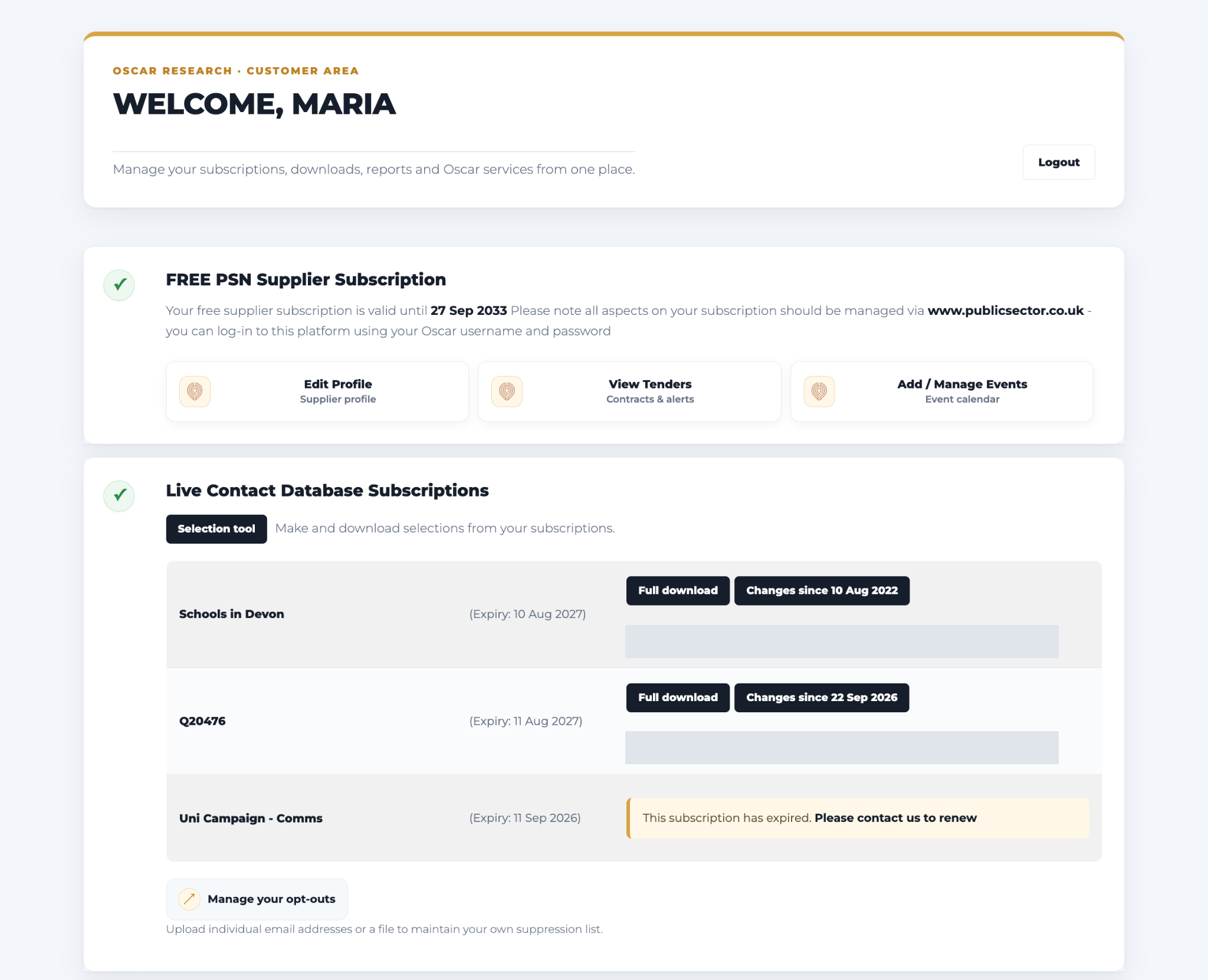
Contact database subscriptions
Choose your subscription to use the Selection Tool, Full Download, Changes Since or your unique API URL.
The Data Access Guide explains all four routes, including audience selection and keeping an existing file up to date.
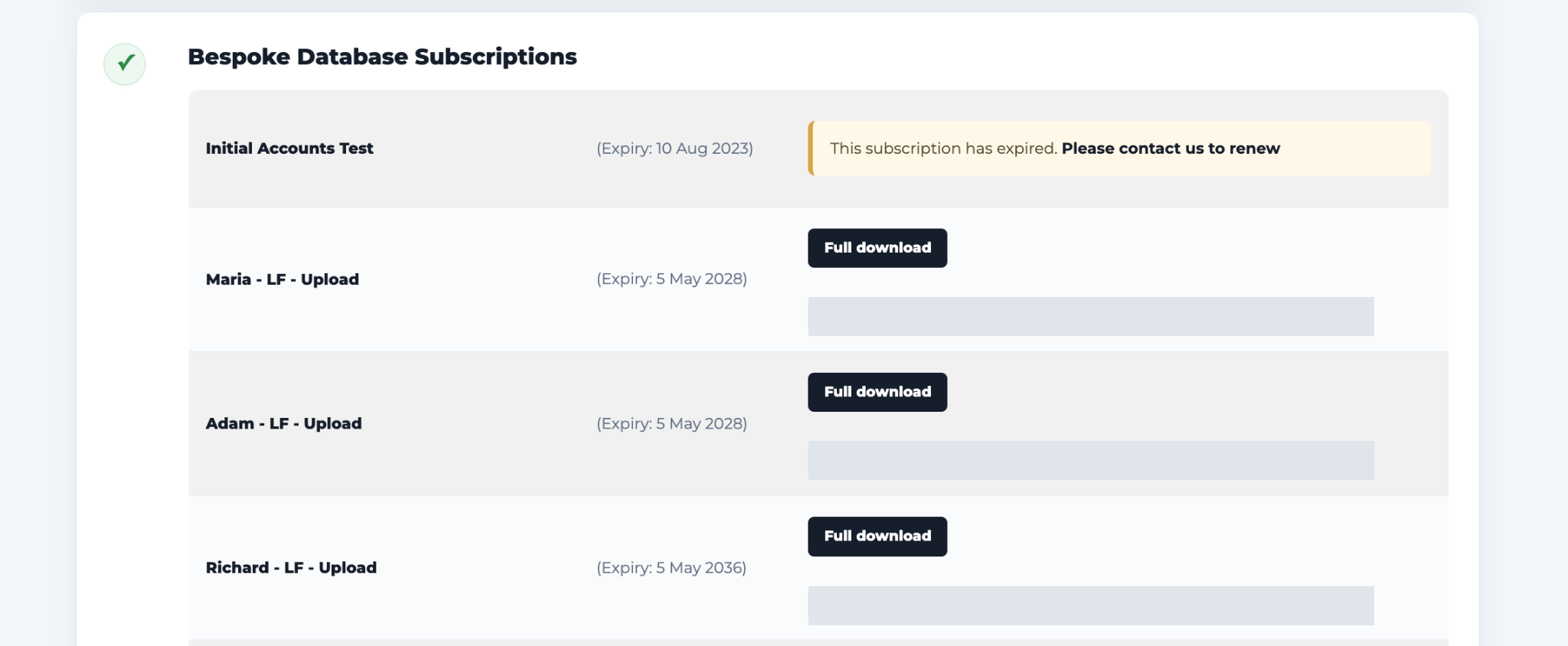
Bespoke and organisational databases
Use the download button against your bespoke or organisational subscription to get the latest CSV file. If API access is activated for your account, the unique URL is listed against that subscription.
See the organisational field structure for the columns and descriptions.
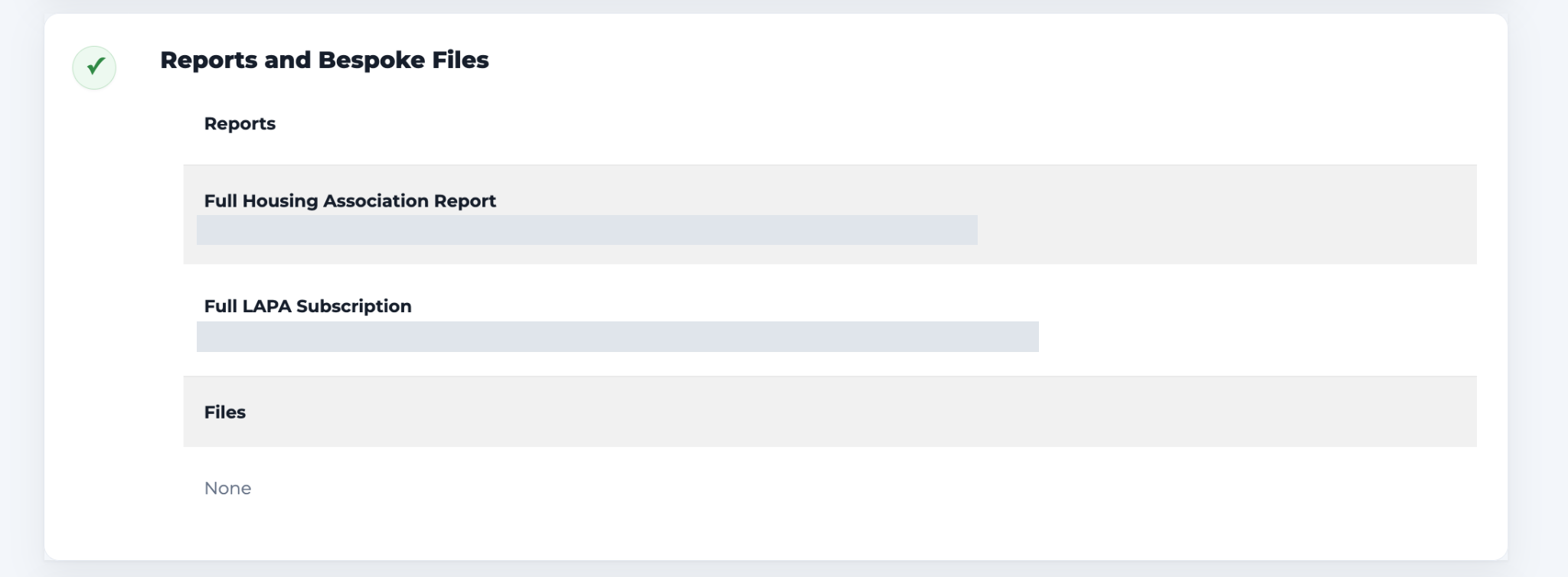
Reports and bespoke files
This section holds reports, data files and visualisations prepared for you. Select the description or link beside an item to download it or open its secure page.
Manage your PSN subscription
PSN supplier subscriptions are managed on publicsector.co.uk. Use PSN for your supplier subscription rather than the Oscar Customer Area.
For detailed instructions, see the PSN Supplier Subscription Guide (PDF).
Manage eLobby campaigns
Open the campaigns link in your Customer Area. The overview lists your campaigns, the plugin link, a control to copy that link and an option to download submissions.
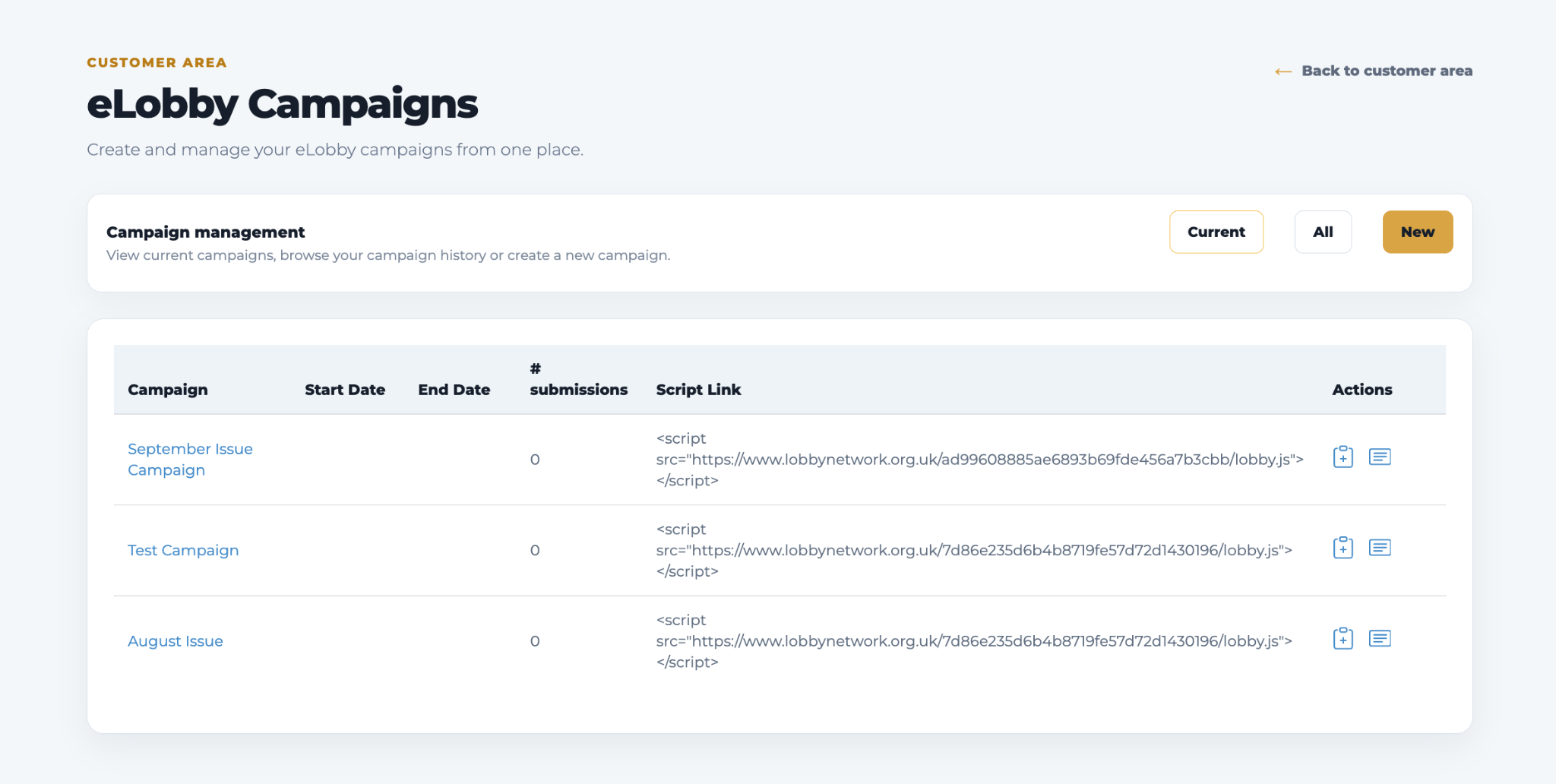
Set up or edit a campaign
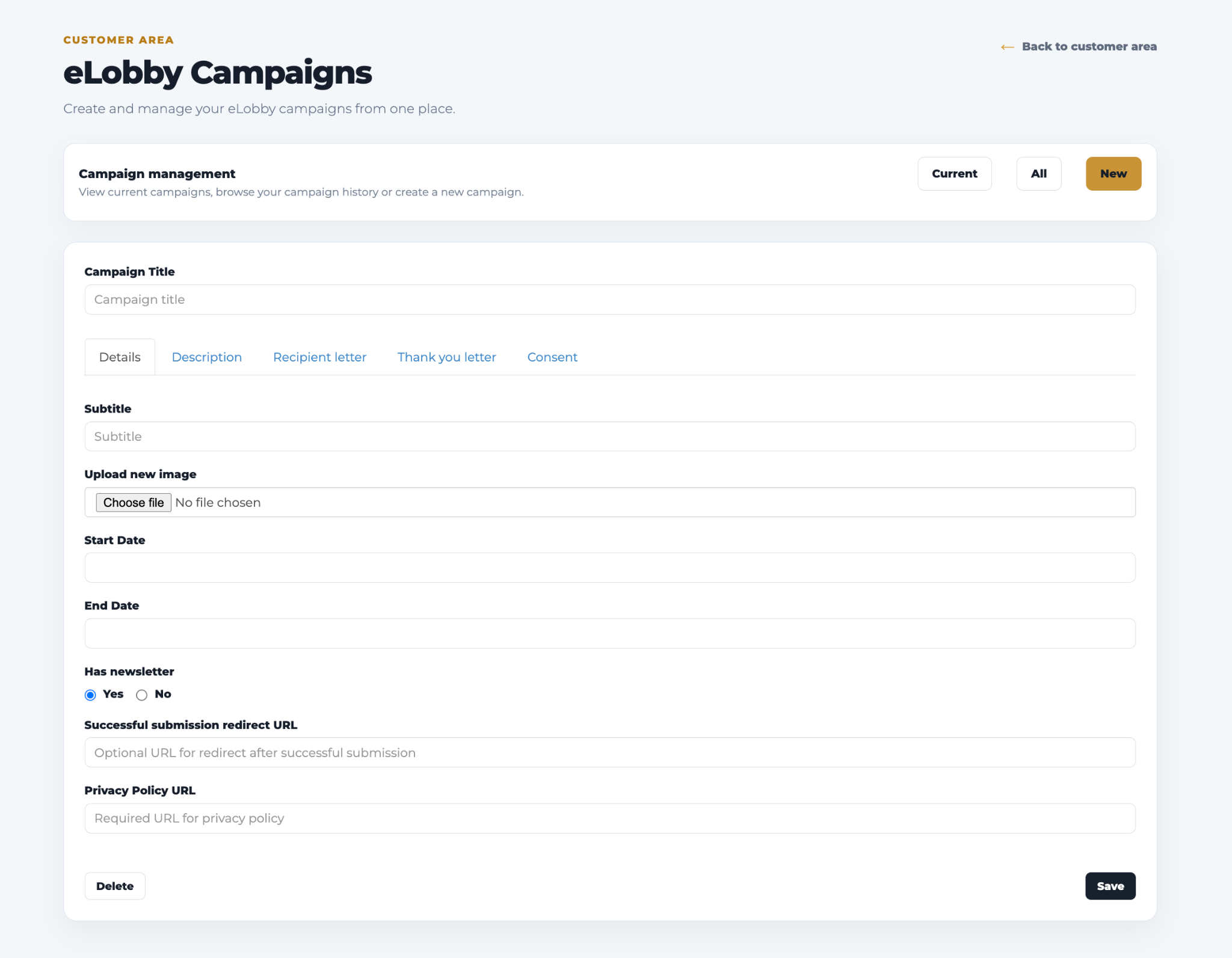
Select New to create a campaign, or open an existing campaign to edit it. The same tabs are used for both.
- Details: add a title, subtitle and JPG or GIF image. Set the Start Date and End Date as needed.
- Newsletter: enable the option if you want supporters to opt in to your organisation’s newsletters.
- Successful submission redirect: optionally send supporters to a page after submission. Otherwise they remain on the campaign page.
- Privacy Policy: add the required link to your organisation’s privacy policy.
- Description: write the campaign introduction shown below the image and above the postcode search.
Consent settings
The current editor also has a Consent tab. Review its settings before launching your campaign. Contact your account manager if you need help configuring them.
Choose recipients and write the letter
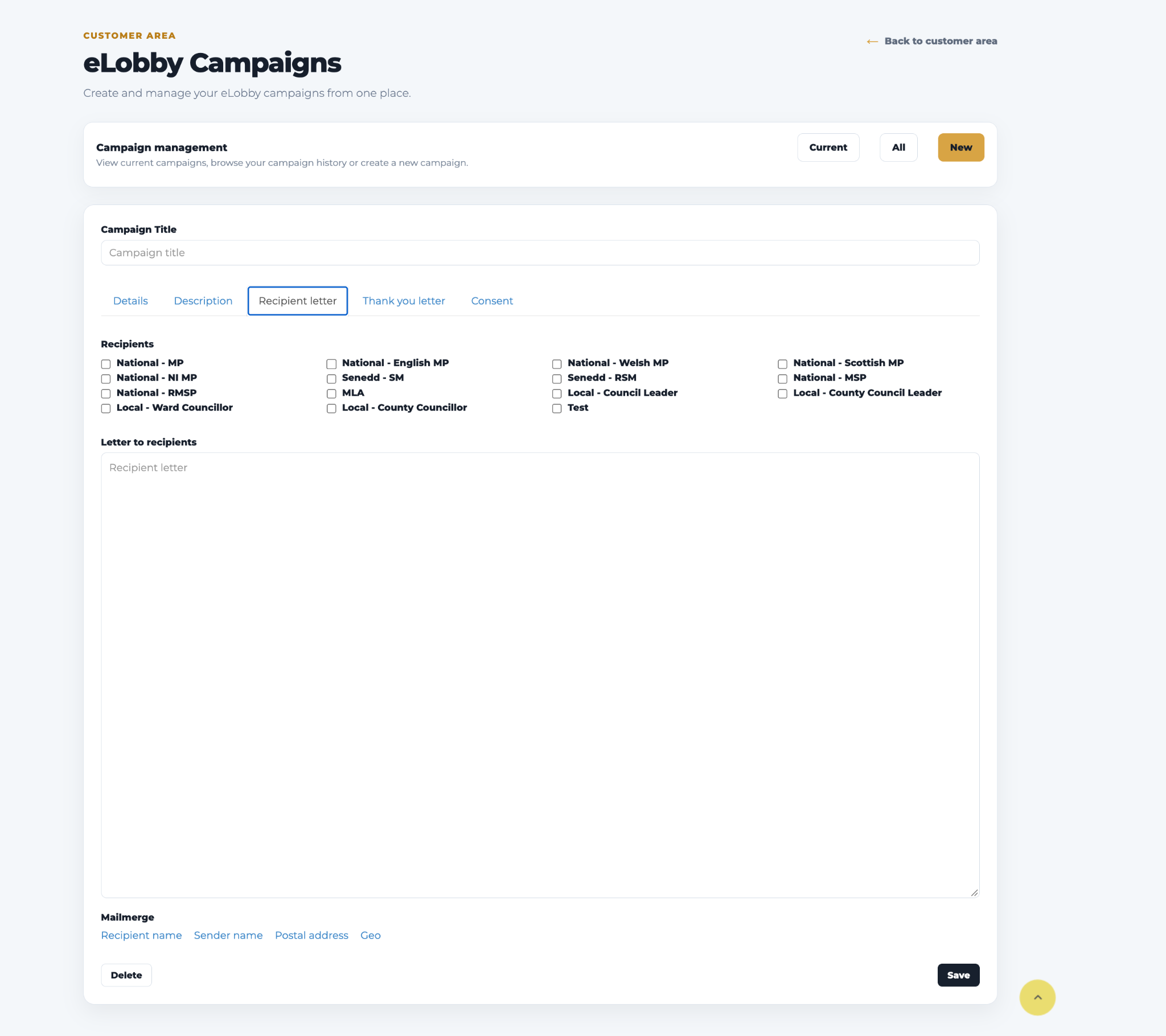
Recipient categories cover MPs, Welsh and Scottish parliamentary representatives, Northern Ireland Assembly members, council leaders, local ward councillors and county councillors. Ask your account manager if you are unsure which group fits your campaign.
Write the letter in the Recipient Letter tab. Use the Mailmerge links at the bottom of the page to insert Recipient name, Sender name, Postal address or Geo where needed. Keep the letter concise, accurate and respectful; supporters see it below the identified recipients.
Write the thank-you email
Use the Thank you Letter tab to write the email automatically sent after submission. Insert the sender’s name using the available merge field.
Download submissions
Return to the campaign overview and use the download option against the campaign to get its submission data.
Add eLobby to your website
Copy the campaign-specific script link from your campaign overview. Add a container and that script inside the page’s body:
<div id="lobby"></div>
<script src="https://www.lobbynetwork.org.uk/YOUR_CAMPAIGN/lobby1.js"></script>
Replace the example script URL with the exact link from your campaign. The plugin requires jQuery to load before the campaign script. Ask your developer to check the version already used on your website before adding another copy.
The plugin can inherit styling from your page. Your developer can adjust the surrounding layout and styles to fit your site.
Check the initial image, title, description and postcode search. Then test the recipient selection and letter after entering a postcode, keeping TEST selected during testing.
Explore more from Oscar
For bespoke research, data processing, analysis and reports, explore Oscar Intelligence. For supplier subscriptions and promotion, visit PSN or explore PSN for suppliers.
Need a hand?
Contact your account manager, call 0330 128 9892 or email hello@oscar-research.co.uk.