

Keep working in the spreadsheet tools your team already uses while pulling the latest licensed Oscar data from your subscription endpoint.
This guide covers the two approaches documented by Oscar: Microsoft Excel and Google Sheets. Both start with the unique data URL shown against your subscription in the Customer Area.
A connected spreadsheet is useful when your team already has reports, pivots, charts or other data in Excel or Google Sheets and wants to refresh Oscar data without repeatedly downloading and re-importing a new file.
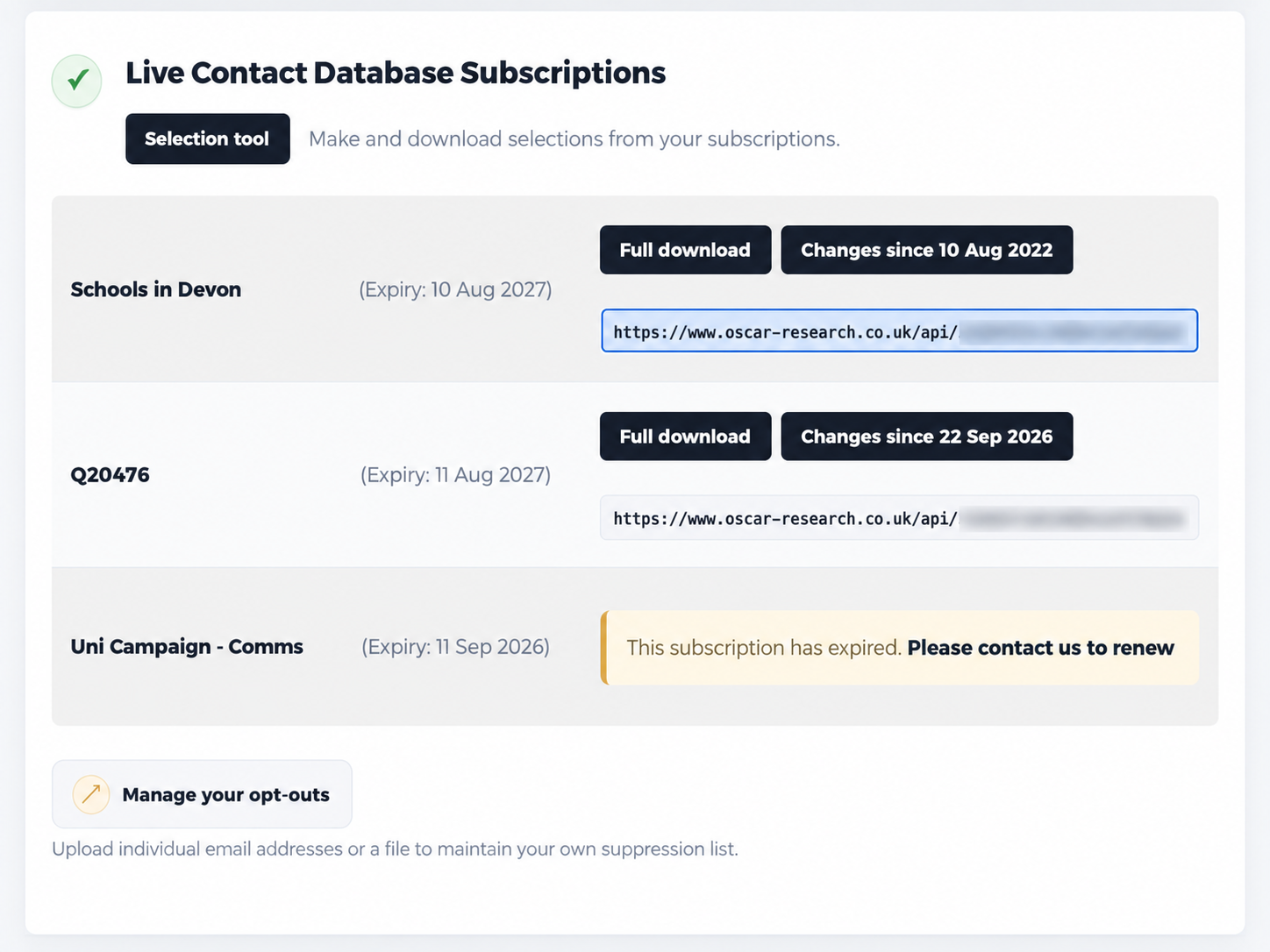
Excel can connect to the Oscar endpoint using its built-in web data import tools, allowing the same workbook to be refreshed later.
Log in to the Oscar Customer Area and locate the URL shown against the database subscription you want to import.
Open a new workbook or a new tab in an existing workbook. Go to Data → Get Data → From Other Data Sources → From Web.
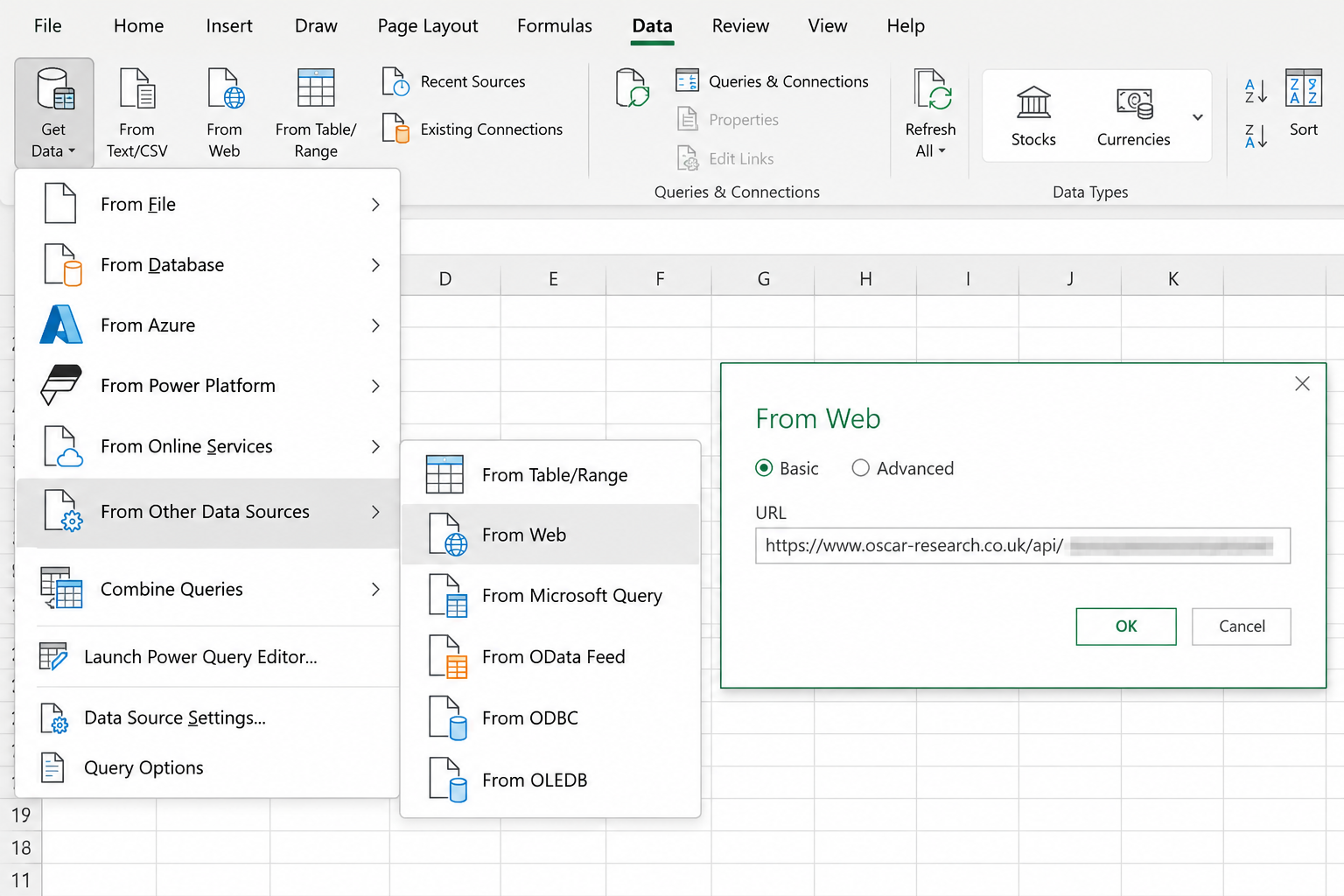
Enter the Oscar subscription URL in the dialogue window that appears.
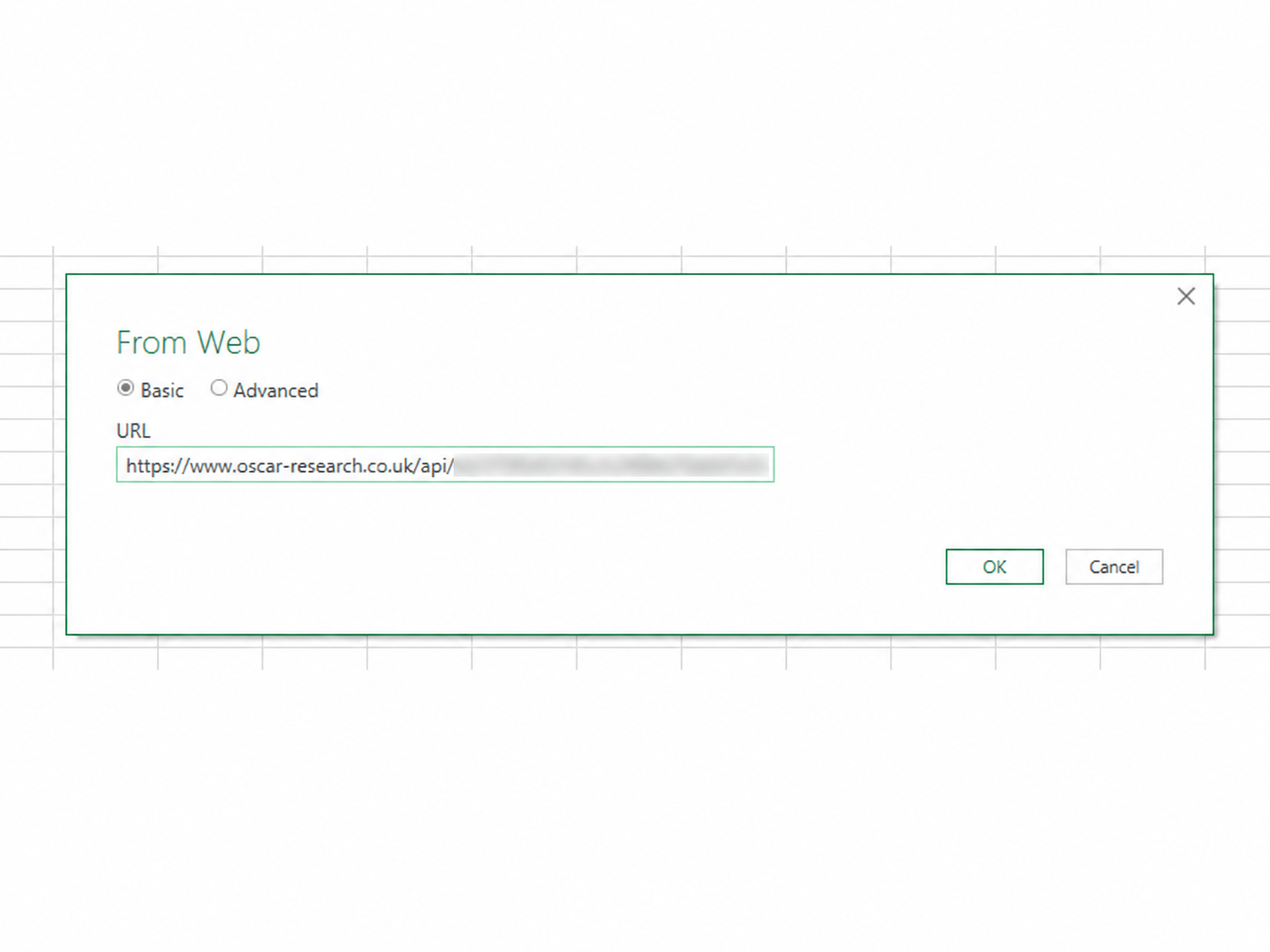
Click OK. Depending on the size of the data file, Excel may take a short while to connect. Once the data preview appears, load it into the workbook.
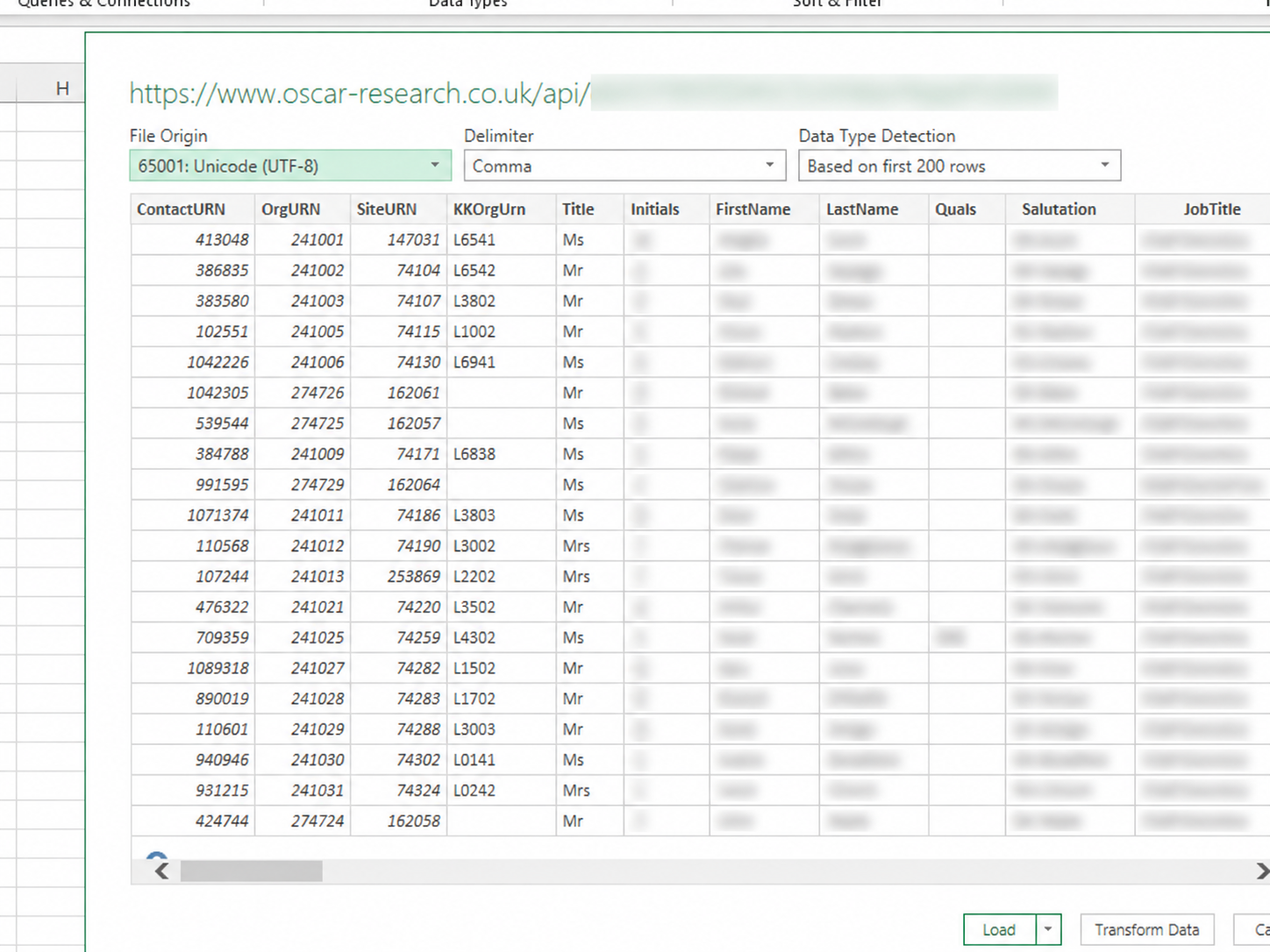
Once connected, Excel shows the query/connection for the imported Oscar data. Use the refresh control to download the latest version into the workbook.
Save the workbook and use the connected data across additional tabs, queries, pivot tables and charts. Refreshing the connection updates the underlying Oscar data used by those outputs.
Google Sheets can load data from your Oscar subscription URL using the IMPORTDATA function.
Log in to the Customer Area and copy the URL for the subscription you want to import.
Open a new Google Sheet or a new tab in an existing file. In cell A1 enter:
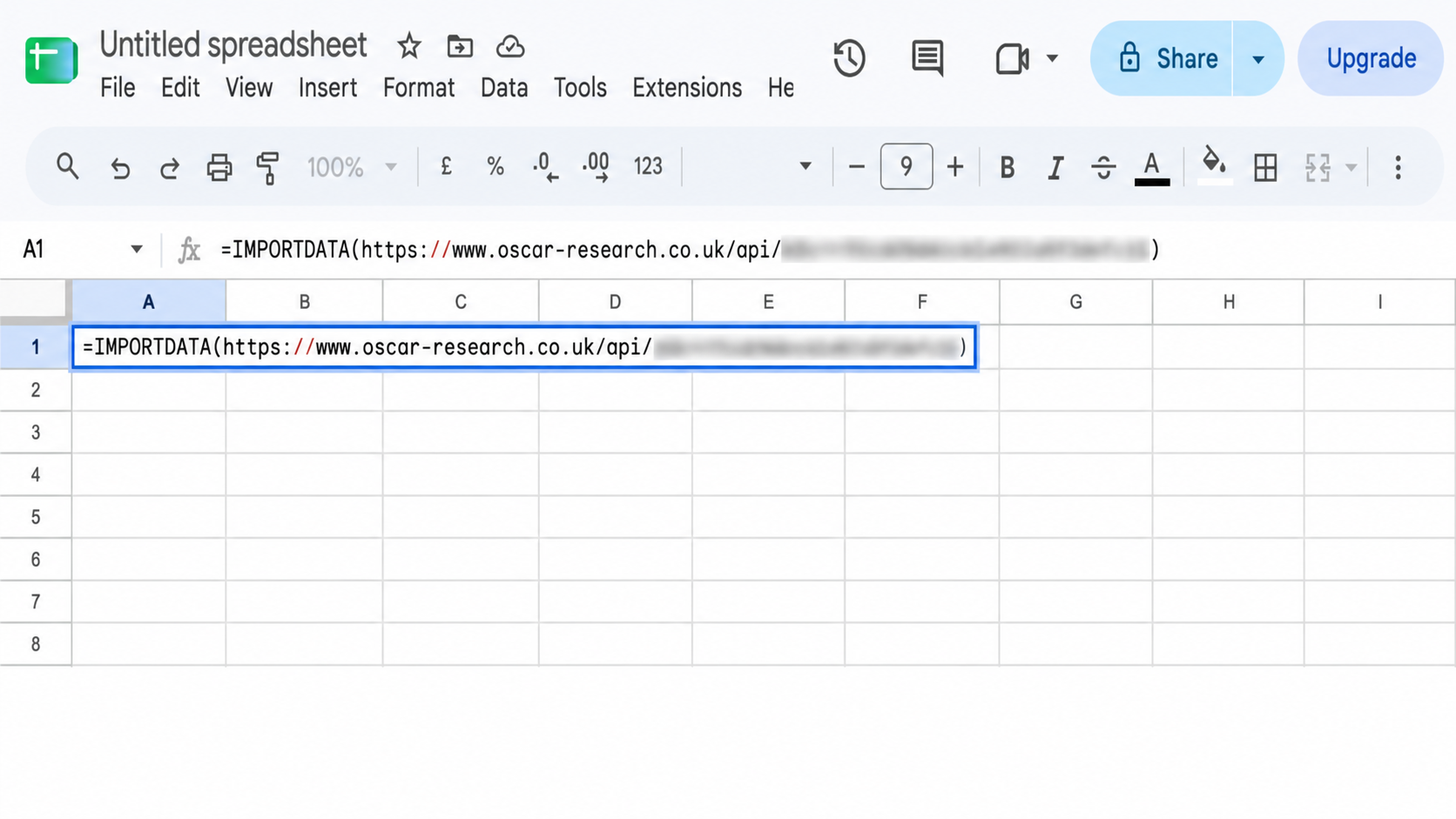
The spreadsheet will load data from the Oscar endpoint. To refresh manually, the original guide suggests re-entering the formula so the latest data is pulled again.
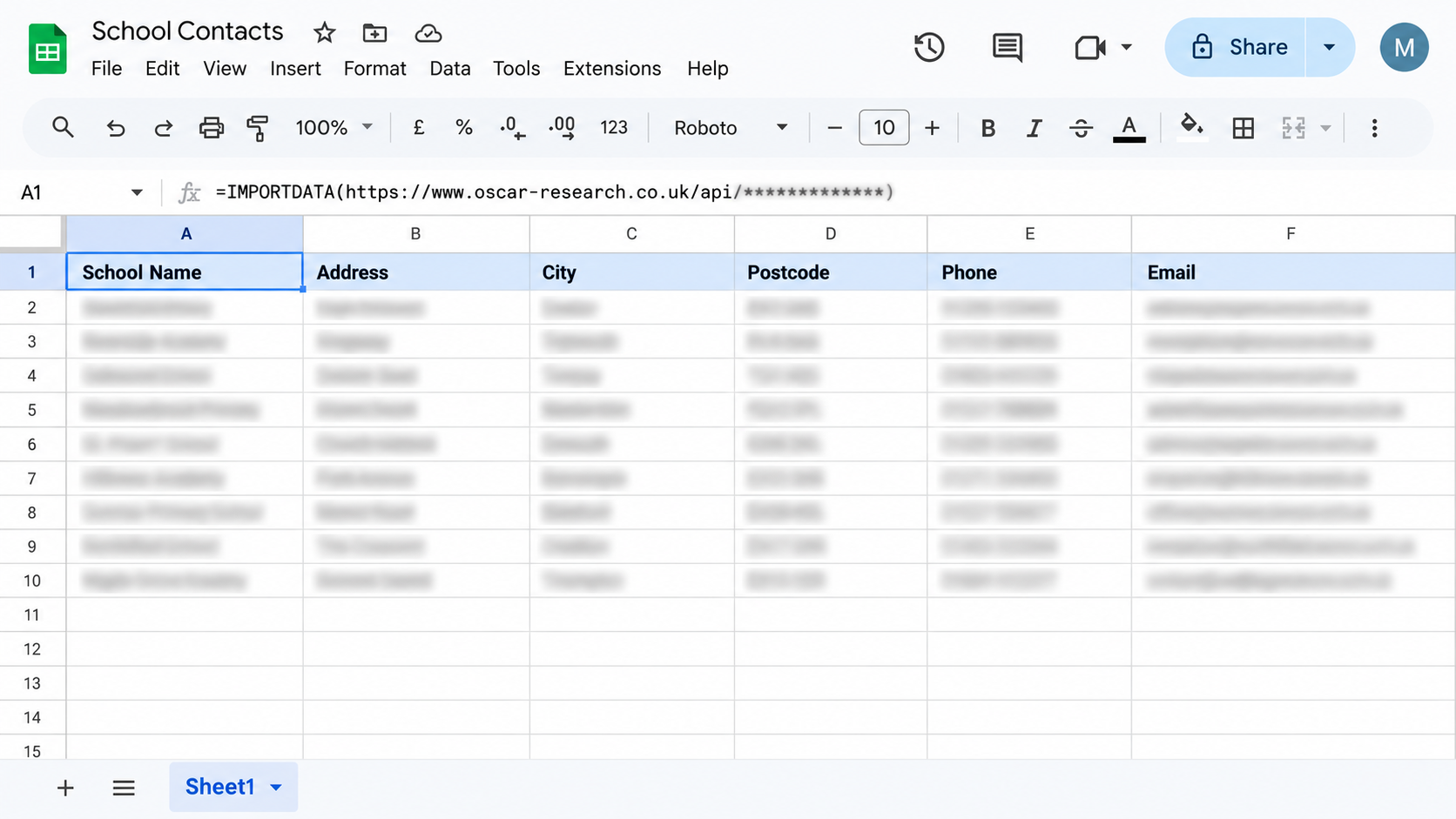
The original guide also documents an optional script-based route for regularly resetting the IMPORTDATA formula.
Save the script, add a trigger and choose the schedule you want. The original guide recommends no more frequently than daily, with weekly also suggested as a practical option.
Compare the Selection Tool, Full Download, Changes Since and API delivery.
View Access Guide →See how spreadsheet connections fit alongside APIs, webservices and bespoke delivery.
Explore Delivery →Need a bespoke feed, custom fields, enrichment or delivery logic?
Explore Data Services →We can help you choose between spreadsheets, direct API access and a more bespoke delivery route.